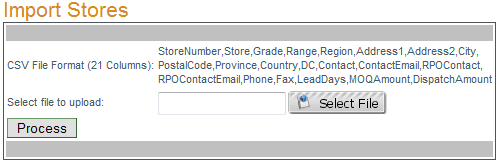
To manage a store click Edit next to the store to be edited and the "Editing Store Record" box will open beneath the list of stores. To find a store by store number enter the store number into the store search box and click "Search". The search by store number function returns exact matches only. To filter and display all stores of a specific grade or in a specific region select the grade and/or region from the corresponding drop-down menu. To export the currently displayed data click
Export CSV.
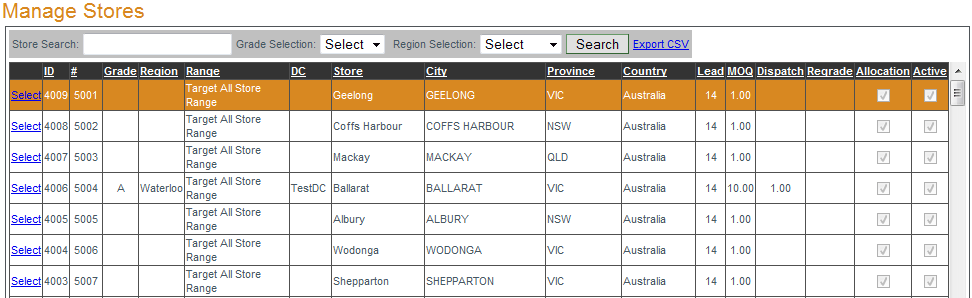
There are several store properties than can be edited, store number and store name are the only two required fields. Once editing is complete click
Update to save changes.
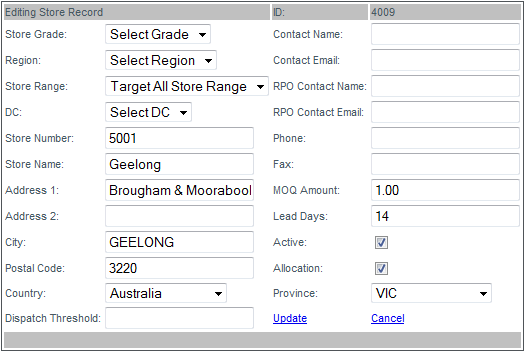

To add a store enter the new store's information into appropriate fields and click "Add Store" to save. There are several required fields when adding a new store (Store Number, Store Name, Address1, City, Postal Code, Lead Days, MOQ Amount, Dispatch Threshold). Non-required fields may be left blank and edited at a later date.
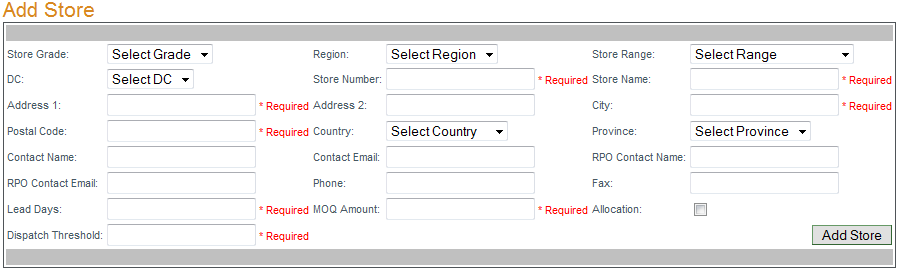

To import a list of stores click "Select File" and locate the properly formatted CSV file to import. The CSV file must have 21 columns of data: StoreNumber, StoreName, Grade, Region, Address1, Address2, City, Postal Code, Province, Country, DC, ContactName, ContactEmail, RPOContactName, RPOContactEmail, Phone, FAX, LeadDays, MOQAmount, DispatchAmount (in that order).
NOTE: Any NON-REQUIRED fields may be left empty in the CSV file provided the 21 columns of data are present and the order of the data is correct.
NOTE: Store Grade, Region, Store Range, DC, Country and Province data must be entered exactly as it appears in the drop-down menus in the "Add Store" box. If unsure of the format/spelling of these items check the drop-down menus.
If a field is incorrect in the CSV the information will not be displayed in the store properties.
EXAMPLE#1: country Canada, province Ontario ->province's full name used.
EXAMPLE#2: country Australia, province NSW ->province's short name used.