Running allocation will return results indicating items and quantities required to maintain WOC and MPL. These results are based on sales data and inventory requirements for each store. The steps to allocation include running allocation, reviewing allocation data and confirming the allocation data is final by clicking "Accept". No allocation data is processed until "Accept" has been clicked.
To begin the allocation process select a period from the
Select Allocation Period drop-down menu.
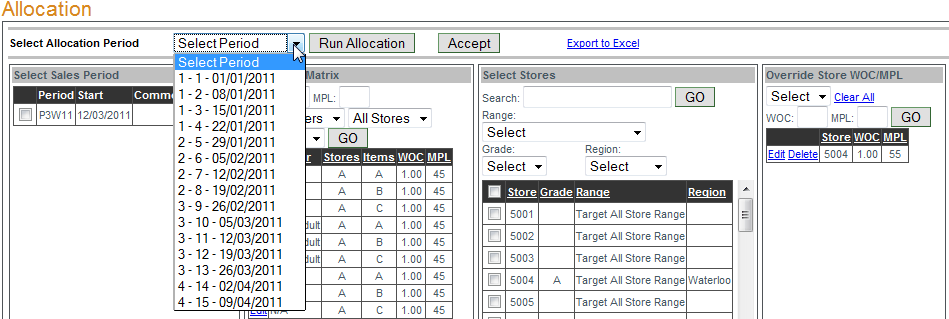
Select a sales period by clicking the box to the left of the period in the "Select Sales period" box.
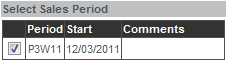
Select the store(s) to be included in the allocation by clicking the box to the left of the store in the "Select Stores" box (or the empty box at the top of the column to select all stores). The available stores displayed can be filtered by range, grade and region using the corresponding drop-down menus. To search for a store by store number enter the store number in the search box and click "Go". To select the store returned in the search result click the box to the left of the store number.

Once the sales period and store(s) have been selected (as well as any overrides or matrix data if any) click "Run Allocation". A list of items will be displayed showing sales data, inventory data and the allocation for each item. When all items and allocation quantities have been reviewed then click "Accept" to confirm this allocation. To edit the sales period, WOC or WPL for an item click
Edit next to the item to be changed.

Optionally the Allocation Matrix can be used when running allocation to filter for specific WOC and MPL levels, genders, stores by grade and items by grade.

There are 3 overrides available.
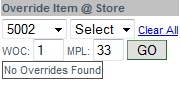
Override Item @ Store displays any items whose WOC and/or MPL have been overriden
for a particular store only. The WOC and MPL values can be changed by clicking
Update. To delete the override(s) click
Clear All.
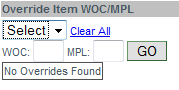
Override Item WOC/MPL displays overrides for items whose WOC and/or MPL have been overridden for all stores. The override effects the item for all stores. The WOC and MPL values can be changed by clicking
Update. To delete the override(s) click
Clear All.
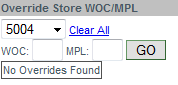
Override Store WOC/MPL displays all overrides for a particular store. These overrides effect that store only. The WOC and MPL values can be changed by clicking
Update. To delete the override(s) click
Clear All.