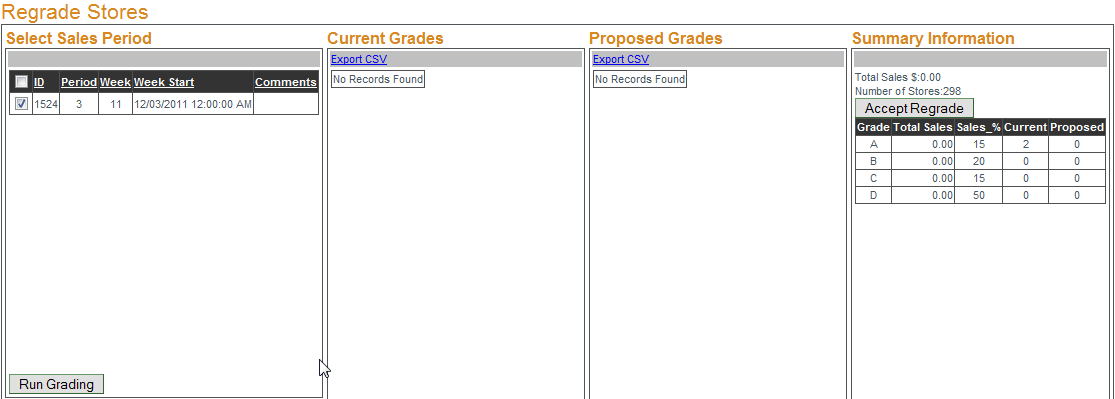
To manage store grades click Select next to the grade to be edited. The grades name, sales percentage and if it is included in allocation can be edited, click
Update to save the changes. The sales percentage refers to the sales performance rating the grade is associated with.
EXAMPLE: Grade A is reserved for the top 15% of sales, grade B the next 20% with grades C and D further down the list in sales performance. The combined sales percentage of all grades should equal 100.
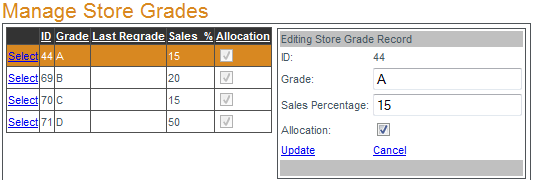

To add a store grade enter the grade name, the sales percentage it will be associated with, if it is to be used in allocations and click "Add Grade".
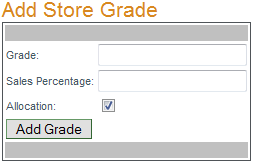

If a store's sales increase or decrease they could move up to a higher grade or fall to a lower one. To determine if any stores are currently performing "outside of their grade" select a sales period to review and click "Run Grading". If a store's sales are at a level of a grade other than its own the current grading information along with the proposed grade will be displayed. To accept the proposed grades click "Accept Regrade".
EXAMPLE: If a grade A store's sales dropped to grade B levels and the regrading indicated a proposed grade of B, clicking "Accept Regrade" assigns the new grade of B to that store.