An item range is a list of items organized under an item grade. These item ranges are then easily assigned to store groups.
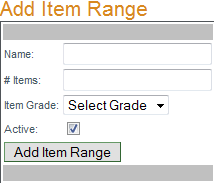
To create a new item range click
Add Item Range, enter the range's name, number of items it will include, the item grade, active/inactive and click
Update to save.
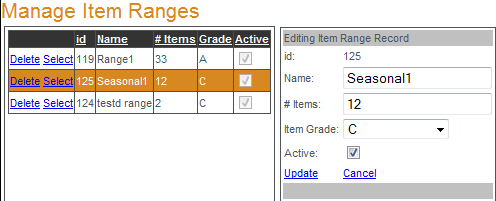
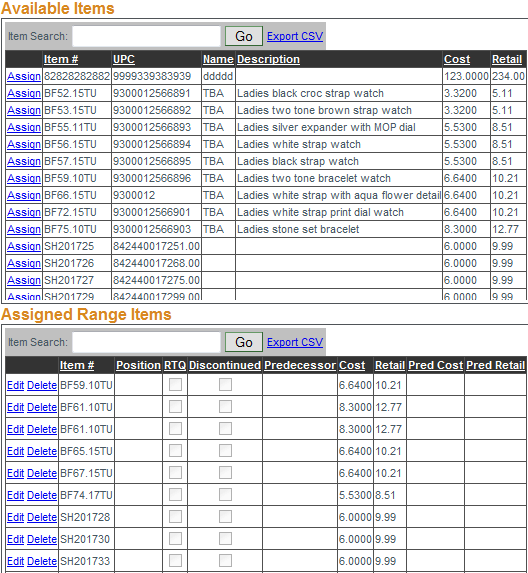
Once the item range has been created the list of items available for assignment to that range are displayed in the "Available Items" box. To assign an item click
Assign next to the available item to be included in the item range. All items that have been added to the item range will appear in the "Assigned Range Items" box.
To import a list of existing items to assign to the item range click
Import Range Items, select the name of the item range to be associated with the imported items, click "Select File" to locate the file to be imported and click "Process" once the upload is complete. The file to be imported must be a properly formatted CSV file with 2 columns of data: ItemNumber, Predecessor (in that order).

Store groups allow for easily assigning item ranges by grade to collections of stores. To add a store group click
Add Store Group, enter the store group's name, if it's active/inactive and click "Add Store Group". Once the store group has been created it can be managed and have item ranges assigned to it. To manage a store group click
Select next to the store group to be managed. To assign item range(s) to the store group click
Select next to the preferred grade in the "Grade/Range Associations" box. A list of available item ranges in that grade will be displayed. To select the item range click
Assign next to the item range and the item range will now be assigned to the store group.
The item ranges (by grade) already assigned to the store group are displayed in the "Assigned Item Ranges" box. As you click
Select next to a grade the available item ranges and assigned item ranges for that grade are displayed.

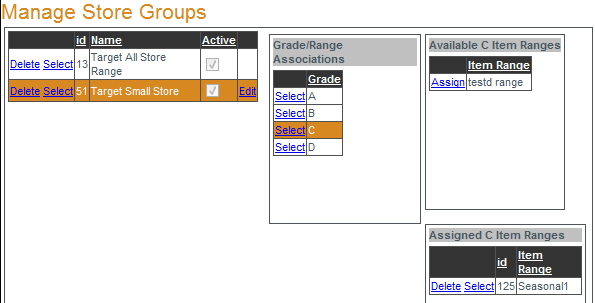
To unassign an item range from a store group click Delete next to the item range in the "Assigned Item Ranges" box. The item range will no longer be assigned to the store group and will then be displayed as available.