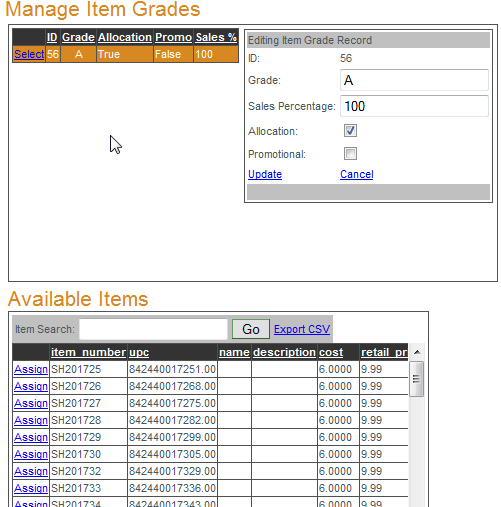
To manage item grades click
select next to the grade to be edited. Three boxes will open:
- Editing Item Grade Record
- Available Items
- Assigned Grade Items
Editing Item Grade Record: Edit the properties of the currently selected item grade and click
Update to save the changes. Sales Percentages define the scope of a grade. EXAMPLE: Grade A - 15%, Grade B - 20%, Grade C - 65% would mean the top 15% fall into Grade A, the next 20% to Grade B and the remainder to Grade C.
To include the grade in allocations or to identify the grade as promotional place a check-mark in the corresponding box and click
Update.
Available Items: This box lists all items available to be assigned to the item grade. If an item does not appear as available it has already been assigned to a grade. Items can be assigned to a grade by clicking
Assign next to the item in the Available Items list. To use the item search, enter the item number and click "Go" or enter the first few characters of the item number, select from the items displayed and click "Go". A list of all items available for grade assignment can be exported to a CSV file by clicking
Export CSV.
Assigned Grade items: This box shows all items that are assigned to the currently selected item grade. To unassign an item click
Delete next to the item to be unassigned. A list of all items assigned to the currently selected item grade can be exported by clicking
Export CSV. The search function is available to locate an item, if searching returns no result the item is not assigned to the currently selected grade.

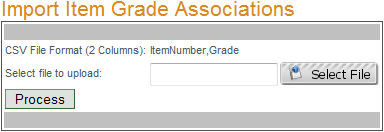
To import a list of item to grade associations click
Import Associations then "Select FIle". Once the file upload is complete (background will turn green) click "Process".
The list must be in a properly formatted CSV file, format = 2 columns of data: ItemNumber, Grade (in that order). Once the list is processed the items imported will be displayed in the Assigned Grade Items box for that grade.

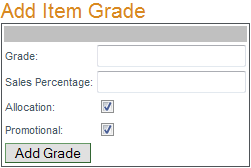
To add an item grade enter the Grade, Sales percentage, if the grade is to be included in allocations and if it is a promotional grade then click "Add Grade".

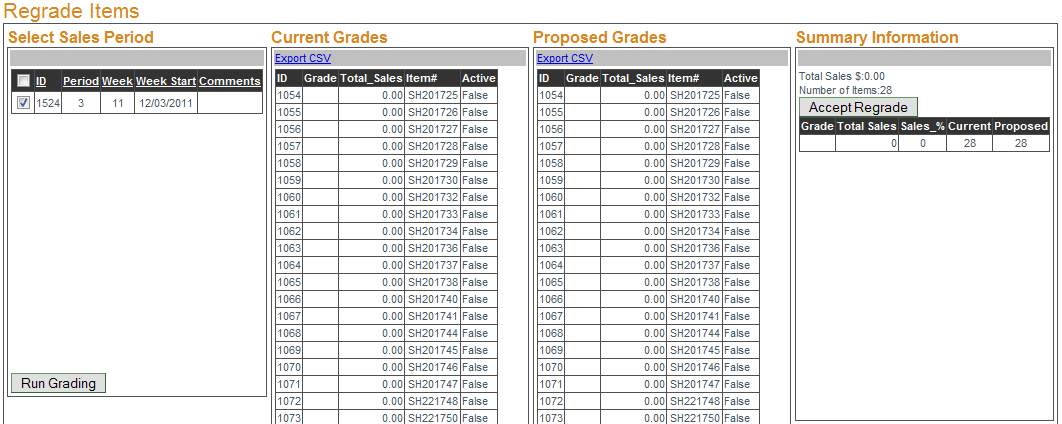
To regrade items select a sales period and click "Run Grading". If there items available for regrading their current grade and sales information will be displayed in the Current Grades box along with the proposed, new grade for the item based on sales performance. Review the items available for regrading and click "Accept Regrade" to confirm.