DC Management allows you to Add, Edit or Delete a DC's properties. Item levels can also be Added or Managed for all of the managed DCs.

To manage a DC click
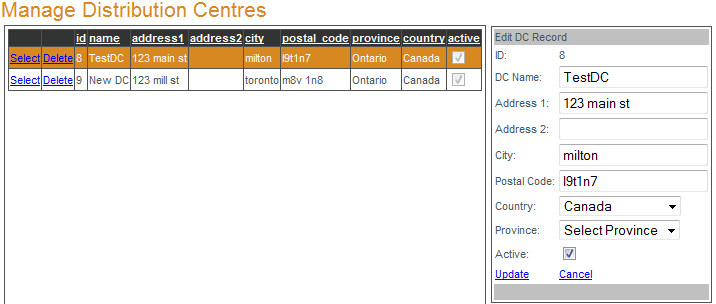
Select next to the DC to be changed and edit the DC's properties in the
'
Edit DC Record box'. To save the changes click
Update.
To DELETE a DC: Click the
Delete button to the left of the DC name you want to delete. You will be prompted to confirm the deletion of the DC. NOTE: A DC cannot be deleted if it has items assigned to it or if it is associated with a store. All associations to the DC must be removed before the DC can be deleted. When prompted, click OK to continue with the deletion or
Cancel.

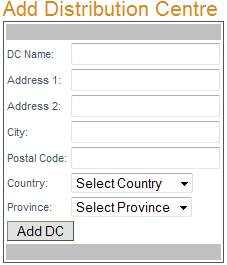
To add a DC input the DC name and details into the 'Add Distribution Centre' box and click "Add DC" to save the DC. All fields except "Address 2:" are required fields.

To manage a DC's item levels select the DC then click
Select next to the item you want to manage. You can search for a specific item by entering the item number in the search box (or to see all items in the DC leave the search field empty) and click "Go". If your item number is returned in the search result click
Select to manage that item level.
When the 'Editing DC Item Level' box opens edit the item's SOH (stock on hand), SIT (stock in transit) or Carry Level, to save the changes click
Update to save ( or
Cancel ).

To export a list of comma separated values (CSV) of all item levels in the DC, click
Export CSV then save the CSV file to your computer. The exported CSV file can be reviewed/edited outside of acuFILL then re-imported provided the formatting of the CSV has not changed (the order of columns and data must remain the same).

To add item levels click you will then have 2 options:
Add Item Level or
Import Item level.
Add Item Level- As with Managing Item levels you can either click
Select next to the item or enter an item number in the item search box (or leave blank to see all items) and click "Go". When you have selected the item to edit, confirm the DC name in the drop-down menu, enter the new SOH and Carry Level and click "Add Level".
Import Item Level- Data for multiple items can be imported at once by importing a properly formatted CSV file. The format of the CSV file must be 4 columns of data: item#, SOH, SIT and Carry Level (in that order).
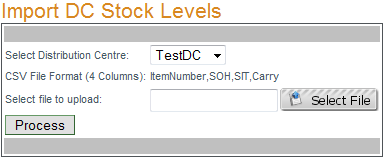
At the 'Import DC Stock Levels' screen select the Distribution Centre, click "Select File" and browse to the CSV file to be imported. Once the CSV file upload is complete the file background will turn green

Click "Process" to finish importing the CSV.