To manage assigned store items click on
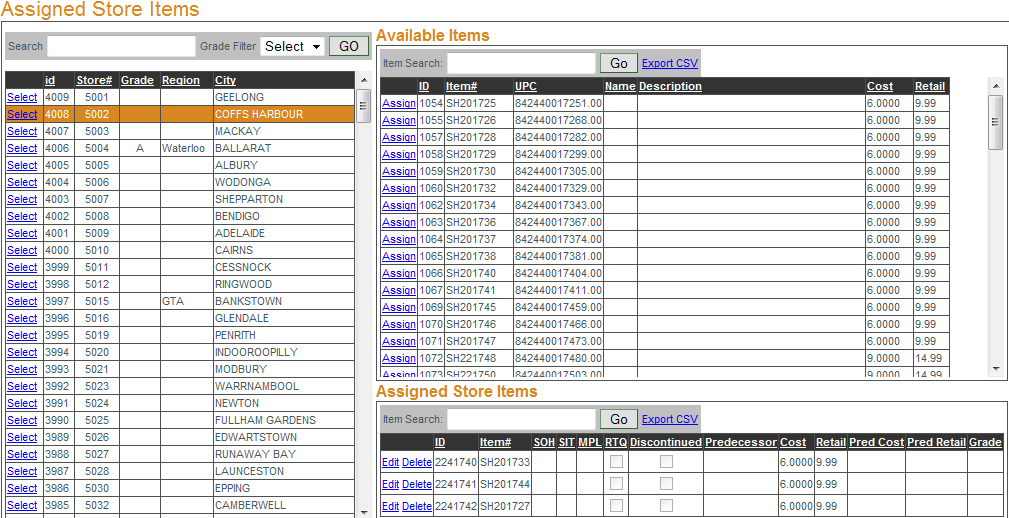
Select next to the store to be managed. The items available to that store and the items currently assigned to that store will be displayed. To assign an item to the store click Assign next the item to be added, the item will now appear in the "assigned Store items" box.
Once an item has been assigned to a store it can be edited by clicking
Edit next to the item. Several item properties can be edited including setting the item's predecessor. This property is used if the item is replacing another. All of the sales data for the discontinued item is inherited by the replacement item. Pred Cost and Pred Retail refer to the predecessor's cost and retail. The option to mark an item as discontinued and/or RTQ are available by clicking the empty box in the corresponding column(s). RTQ = Run To Quit, essentially a discontinued item, the remaining inventory will be sold but stock will not be replenished.


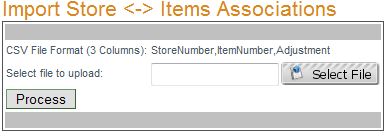
To manage defectives import a properly formatted CSV file. Formatted with three columns of data including StoreNumber, ItemNumber and Adjustment quantity (in that order). Click "Select File" to locate the file to be uploaded, once the upload is complete (background turns green) click "Process".